 Meetbot
Recording meetings
with Meetbot.
From the first word to the next action. Choose how to capture a conversation, set it up once, and stay in control of what happens next.
Record the audio
Your microphone and the call audio, captured by the desktop app. No extra participant joins.
Invite a notetaker
A meeting bot joins the online call and records in the cloud. Join from whichever device suits you.
Jump to a section
Choose the right recording method
Meetbot offers three ways to capture a conversation. The main difference is where the audio comes from, not where you read the finished notes.
| Method | Best for | The trade-off |
|---|---|---|
| Computer audio Desktop · “Bot-free” | Online meetings on Mac or Windows, including with headphones | Keep the computer awake, Meetbot running and the call on that computer |
| Meeting Bot Cloud recording | Supported Zoom, Google Meet and Microsoft Teams calls, from any device | The bot must be allowed into the meeting; host and organization policies apply |
| Phone microphone iPhone & Android · “In-person” | Conversations, interviews and meetings in the room with you | Captures sound around the phone, not another app’s internal call audio |
The web app can manage meeting bots and show your notes. Computer-audio capture requires the desktop app; mobile microphone capture requires the native phone app. On a tablet, use the web app to manage online recordings. Meetbot’s iOS app is designed for iPhone.
Before recording
Tell participants and get the permissions required by your organization and applicable law. Bot-free recording still needs permission. A bot appearing in the participant list is useful notice, but does not by itself establish consent.
Set your default—and decide what is automatic
Your preferred recording method and automatic recording are separate choices. A default tells Meetbot how to capture a meeting; the automatic setting determines when that happens without starting each recording yourself.
On desktop
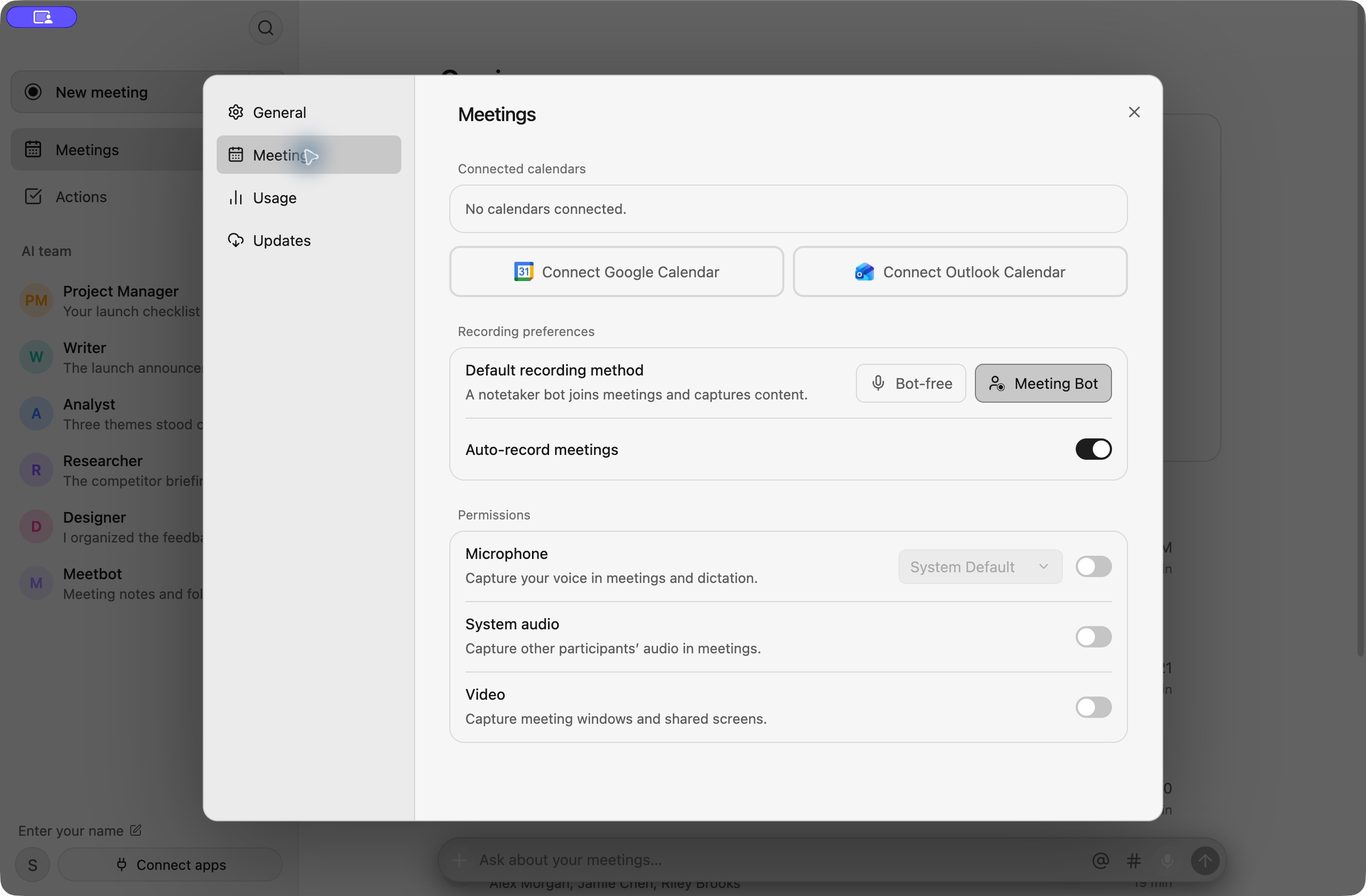
- Open your account menu at the bottom of the sidebar, then Settings → Meetings.
- Under Default recording method, choose Bot-free for computer audio or Meeting Bot for a notetaker participant.
- Set Auto-record meetings on or off. When enabled, Meetbot uses your chosen method for eligible meetings. Bot-free capture still needs the desktop app, permissions and a call running on that computer.
On iPhone and Android
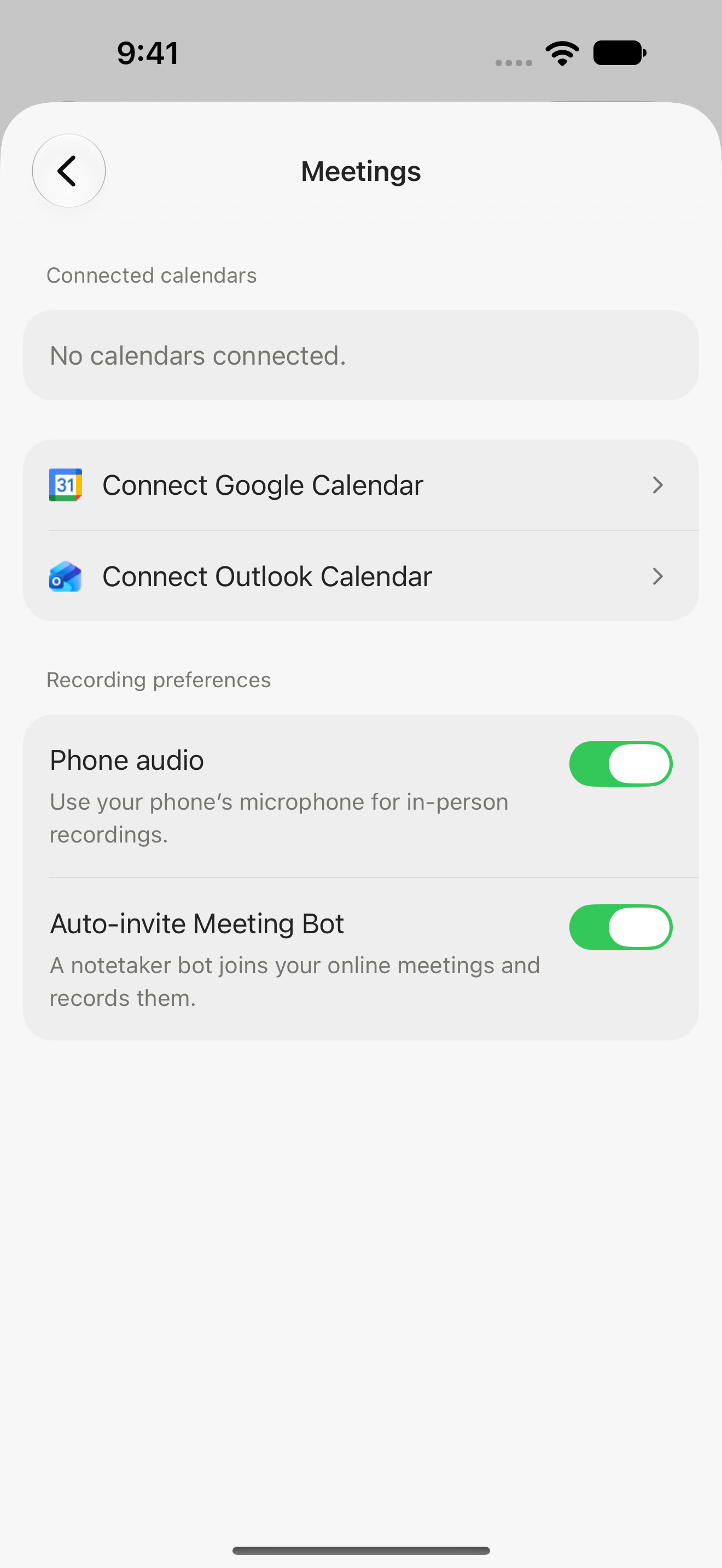
- From the home screen, open Settings → Meetings.
- Enable Phone audio to make in-person microphone recording available on that device. This does not start recording by itself.
- Turn Auto-invite Meeting Bot on to have a bot join eligible online calendar meetings. Turn it off if you prefer to choose events individually.
Some choices sync; others belong to the device
Calendar recording preferences are shared across your account. Enabling Auto-invite Meeting Bot also selects the meeting-bot method.
Phone audio is a device preference. The operating system’s microphone permission is separate.
Explicit choices already made for individual events can override your general default. Review Coming up if you want to skip a particular meeting.
Choose how to record each upcoming event
Connect Google Calendar or Outlook in Settings → Meetings. Your upcoming events appear on the home screen. Calendar connection and recording permission are separate: connecting a calendar does not grant access to your microphone.
Desktop: choose computer audio, a bot, or neither
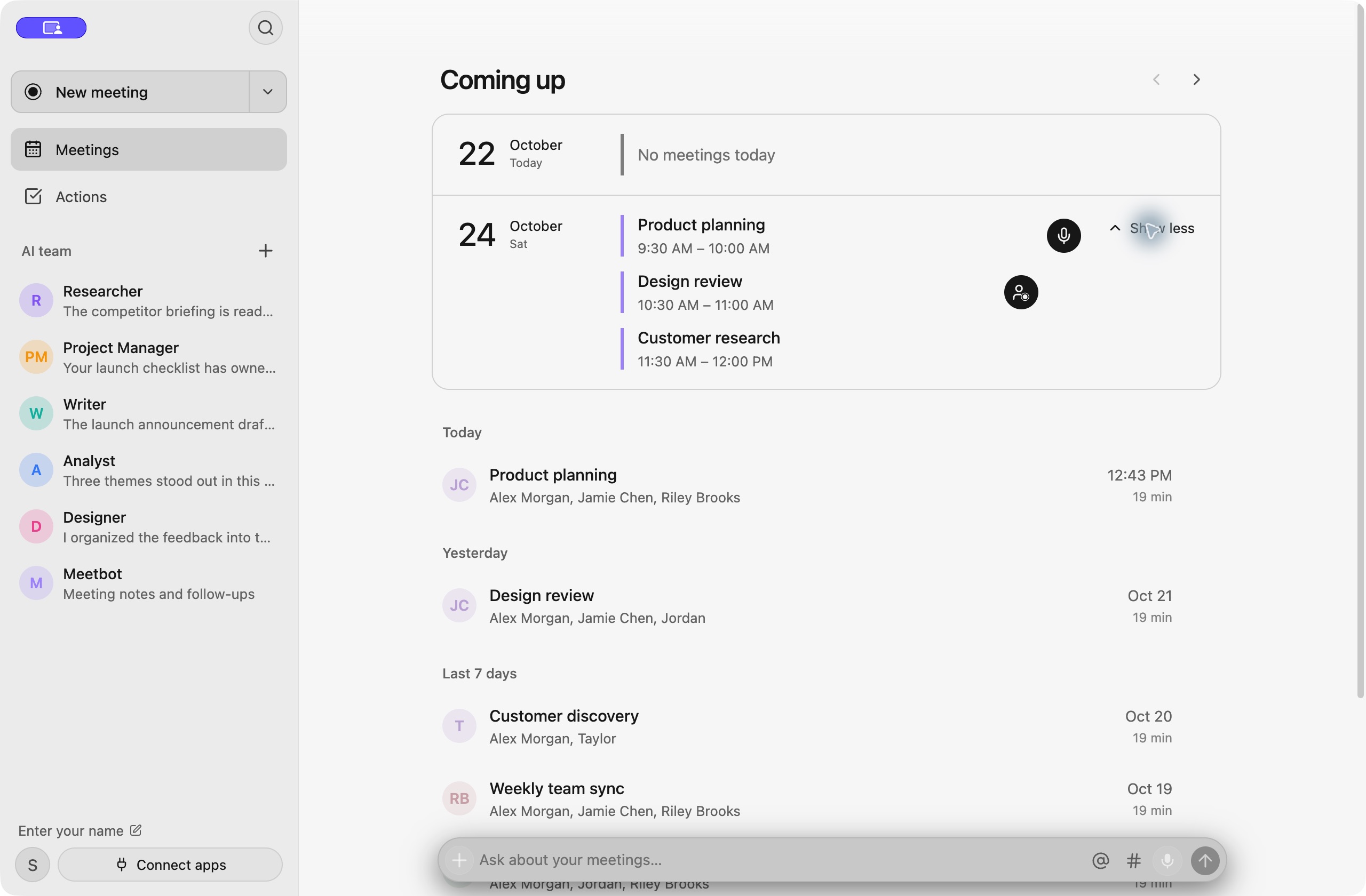
Hover over or focus an event in Coming up to reveal its recording controls. Select the microphone option (Record bot-free) for computer audio, or the meeting-bot option (Record with Meeting Bot) for a participant joining the call.
The selected option stays visible. Choose the other option to switch methods; click the selected option again to turn recording off for that occurrence. The choices are mutually exclusive. A meeting bot needs a supported online meeting link.
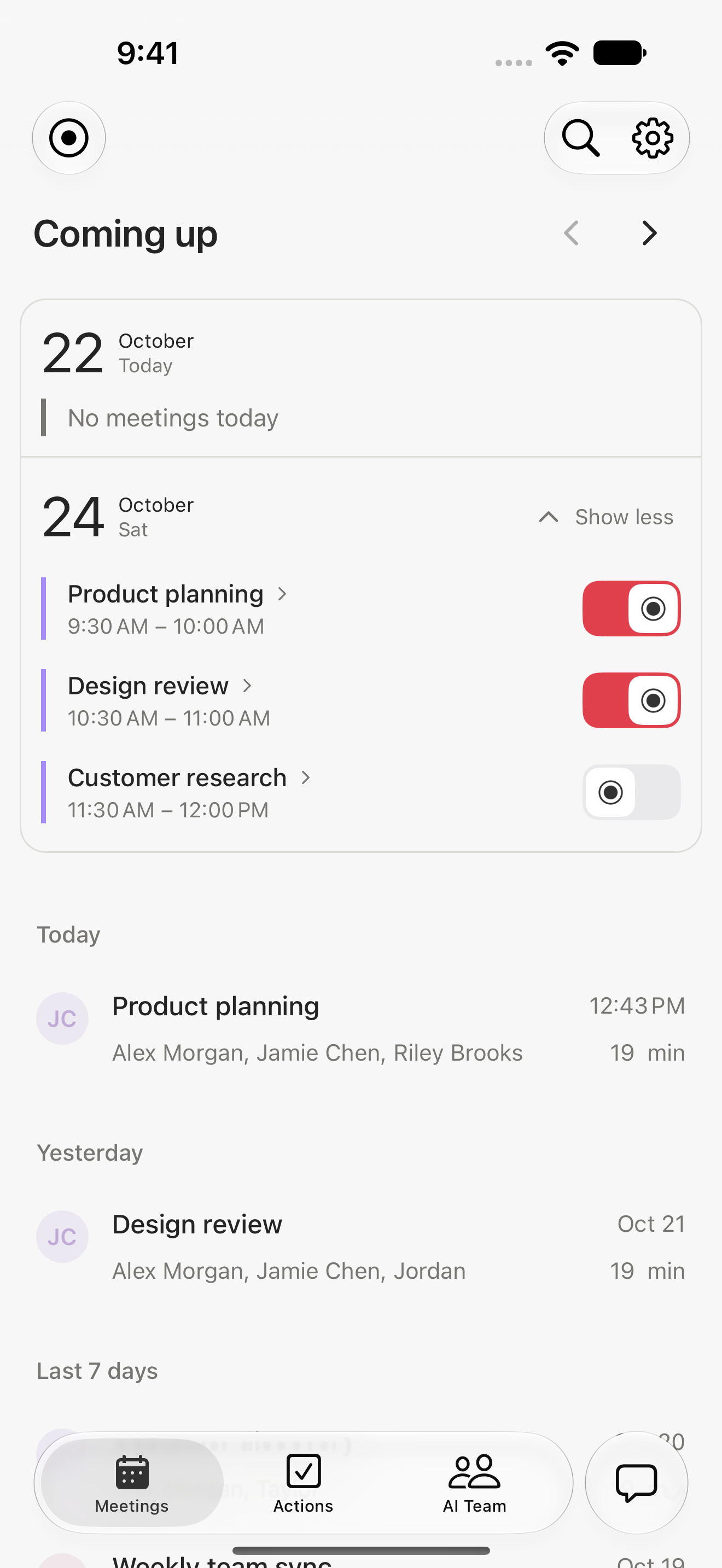
Mobile: toggle the meeting bot for an online event
Use the recording switch beside a future event with an online meeting link to invite the meeting bot or skip that occurrence. Tapping the event itself opens the meeting or calendar link; the recording switch controls the bot separately.
You can select an event even when automatic invitations are off, or skip an event that would normally be recorded. A per-event choice does not change your general default or every future occurrence in a recurring series.
Record a meeting without a bot
- Join the call on your Mac or Windows computer.
- In Meetbot’s New meeting menu, choose Online (bot-free). For a conversation in the room, choose In person.
- Allow the recording permissions requested by the app. Your microphone captures you; computer audio captures the other participants. Headphones are fine.
- Check the floating recording bar and the recording indicator. If automatic detection presents a countdown, you can start immediately or cancel it.
Understand the floating recording bar
The bar stays above your windows while you record. Drag its grip to move it out of the way. Hover over it to reveal the controls.
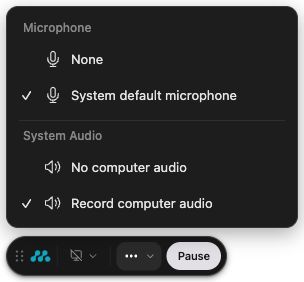

- Audio: choose your microphone and include or exclude computer audio. Check this after changing headsets.
- Screen: control optional screen or window capture where available. Check the selected source before sharing confidential material.
- Pause / Resume: leave a private aside out of the recording, then continue.
- Finish: stop the recording and start saving and processing it into notes.
- Discard: remove the current recording instead of generating notes. The app asks you to confirm.

On macOS, the menu-bar icon at the top right changes to its red recording state. The floating bar provides the recording controls. Windows uses its system tray rather than the macOS menu bar.
Keep the recording computer awake. Switching your call to a phone does not move the recording there. Close unrelated audio sources and silence notifications, since computer-audio capture can include more than the meeting.
The recording-bar images use the app’s actual controls with a sample state; no private conversation was recorded for this guide.
Record an in-person conversation
- Enable Phone audio in Settings → Meetings.
- Tap the New meeting recording icon and choose In-person meeting.
- Tap Start recording and allow microphone access. Keep Meetbot open while recording starts.
- Place the phone where it can hear everyone. Avoid covering the microphone or moving it around the table.
- Tap Pause to reveal Resume, Finish and the discard control. Choose Finish to save the recording and generate notes.
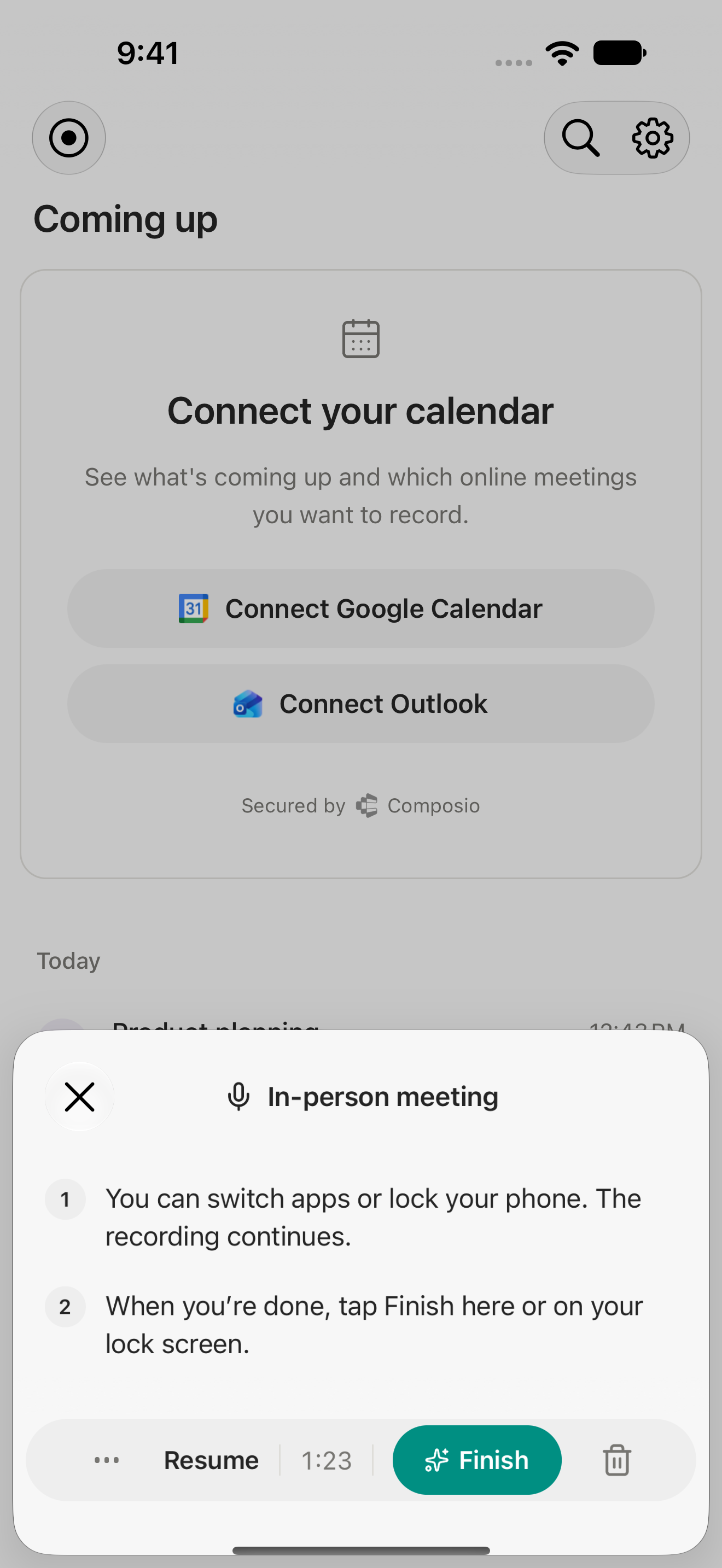
Once recording has started, you can switch apps or lock your phone. Use the recording screen—or the available lock-screen controls—to finish. Phone calls, microphone interruptions and operating-system limits can still interrupt capture; check the recording indicator after an interruption.
Online meetings on mobile need a meeting bot
Meetbot’s phone microphone feature does not record another app’s internal call audio. It will not capture the remote participant speaking only through your headphones. Calls and other apps can also interrupt microphone access. For an online meeting on iPhone or Android, invite a meeting bot.
Invite a notetaker to an online meeting
Use New meeting → Online meeting on mobile or Online (meeting bot) on desktop. Paste the supported meeting link and confirm the invitation. Or use the calendar controls described above to plan ahead.
The notetaker appears as a participant in supported Zoom, Google Meet and Microsoft Teams calls. You can join from another device; the bot’s capture does not depend on keeping your laptop open.
An invitation is not a guarantee of admission
The host may need to admit the bot. Waiting rooms, sign-in rules, organization policies and unsupported links can prevent recording. Check that it is present and recording before relying on it. If it is refused, ask the host about an approved alternative; do not try to bypass the meeting’s restrictions.
If a bot cannot join and everyone has agreed to recording, desktop computer audio can be an alternative. Stop any existing capture before starting another method to avoid duplicate recordings.
From notes to follow-through
When you finish, Meetbot saves and processes the conversation into a transcript, meeting notes and action items. Processing takes time; keep an internet connection available for upload and check the meeting’s status. Open the meeting to review the notes, speaker labels and actions.
By default, a meeting with open actions is handed to your main bot to coordinate follow-through. It reads the saved context, starts clear research, analysis and drafts, and can delegate to specialist bots when useful. It asks you when ownership, intent or essential information is unclear.
This does not mean every action is sent externally or every participant’s commitment is taken over. Sending, publishing and changing shared tools depend on your instructions or saved preferences. Meetings without open actions still save their notes; they do not trigger the default action handoff.
Change the workflow by asking a bot
You can ask any of your bots to update the shared meeting workflow. Be clear about which meetings, who should receive them and what should happen next. For example:
“Send follow-through from customer research meetings to Researcher instead of my main bot.”
“Notify me when notes are ready, but don’t start work on the actions automatically.”
“For design reviews, have my main bot coordinate and ask Designer to prepare the design follow-ups.”
Ask the bot to confirm the saved change. You can revise or turn off that behavior later, without changing how meetings are recorded.
Questions & troubleshooting
Can I use headphones?
Yes with desktop computer-audio recording: the other participants come from system audio and your voice comes from the microphone. Meeting bots also work independently of your headset. A phone microphone cannot hear audio playing only in your headphones.
Will recording continue if I close my laptop?
Computer-audio recording depends on the laptop staying awake and in the call. A meeting bot that has successfully joined records in the cloud, independently of your laptop. Its recording still depends on the meeting continuing and the host allowing it to remain.
I turned automatic recording off. Why is an event still selected?
An explicit choice for an individual event can override your general setting. Check its recording control in Coming up. Turn that event off as well if you want it skipped. A general preference change is not a substitute for checking an already active recording.
The bot is waiting outside the meeting. What should I do?
Ask the host to admit it if recording is allowed. If your organization blocks external notetakers, use an approved alternative. Do not assume a scheduled bot has joined successfully.
Why is a meeting-bot control missing?
The event may have no supported online meeting link, or it may already have started. Check the calendar event and the connected calendar. For an impromptu supported call, use New meeting and provide its link.
My recording is missing voices or sounds quiet.
On desktop, check the microphone selection and computer-audio option, especially after changing a headset. On mobile, check microphone permission and place the phone closer to the people speaking. Confirm the recording is active rather than paused.
Does bot-free mean everything stays on my device?
No. Bot-free describes how audio is captured, without adding a participant to the call. Meeting content is sent for processing into transcripts, notes and actions. See the Privacy Policy for processing, storage and deletion details.
Do I need a connected calendar?
A calendar makes upcoming events and automatic invitations available. You can still start a manual desktop or in-person recording, or invite a bot with a supported meeting link, without connecting one.
Are notes and actions always correct?
AI can make mistakes, including speaker names, decisions and task ownership. Review the transcript and edit important details before relying on them or asking your bots to act.
Still need a hand?
Tell us your device, meeting app and which recording method you tried. Include the app version and any error message, without private meeting content.
Talk to Meetbot supportScreenshots use an illustrative account and fictional meetings. Labels and system controls can vary by app version and operating system. Privacy policy · Account deletion